


OFORK Process Autopilot
Agentic AI for autonomous processes in the ticketing system
With the OFORK Process Autopilot, you can create processes from a written description, import existing BPMN files in seconds, and control execution directly from within the ticket. Tasks are automatically delegated by email, feedback is processed, and the next step is activated without media breaks.
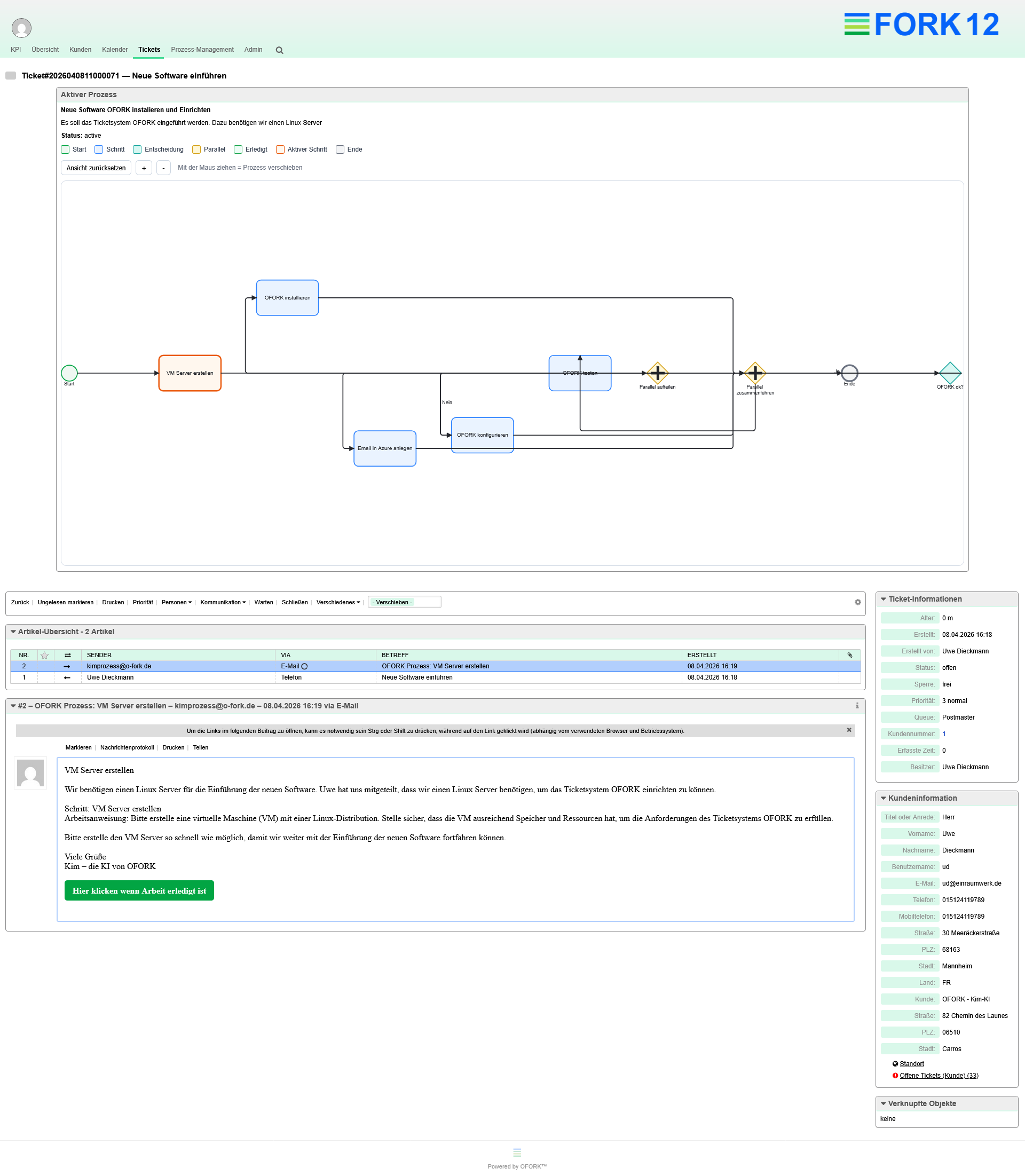
Processes run. Employees work. OFORK controls the rest.
Many workflows fail not because tools are missing, but because there are too many clicks, too many system jumps, and too many manual handoffs. That is exactly where the OFORK Process Autopilot comes in. The AI creates an executable process from a description or imports existing BPMN files directly into the admin area. From there, tasks are controlled, delegated, and documented step by step.
The result: less coordination, less manual follow-up, and far less dependency on employees constantly working inside the ticket system. Processes become visible, manageable, and genuinely useful in day-to-day operations.
A description or BPMN file becomes an executable process
AI creates new workflows — existing models are adopted instantly
With the OFORK Process Autopilot, you simply describe what should happen or upload an existing BPMN file. OFORK visualizes the workflow in the admin area, makes it editable, and turns it into an operational process that can be used directly inside the ticket.
- AI-supported process creation from natural language
- BPMN import in seconds directly into OFORK
- Graphically understandable display and editing
- Actions, approvals, and integrations for each step
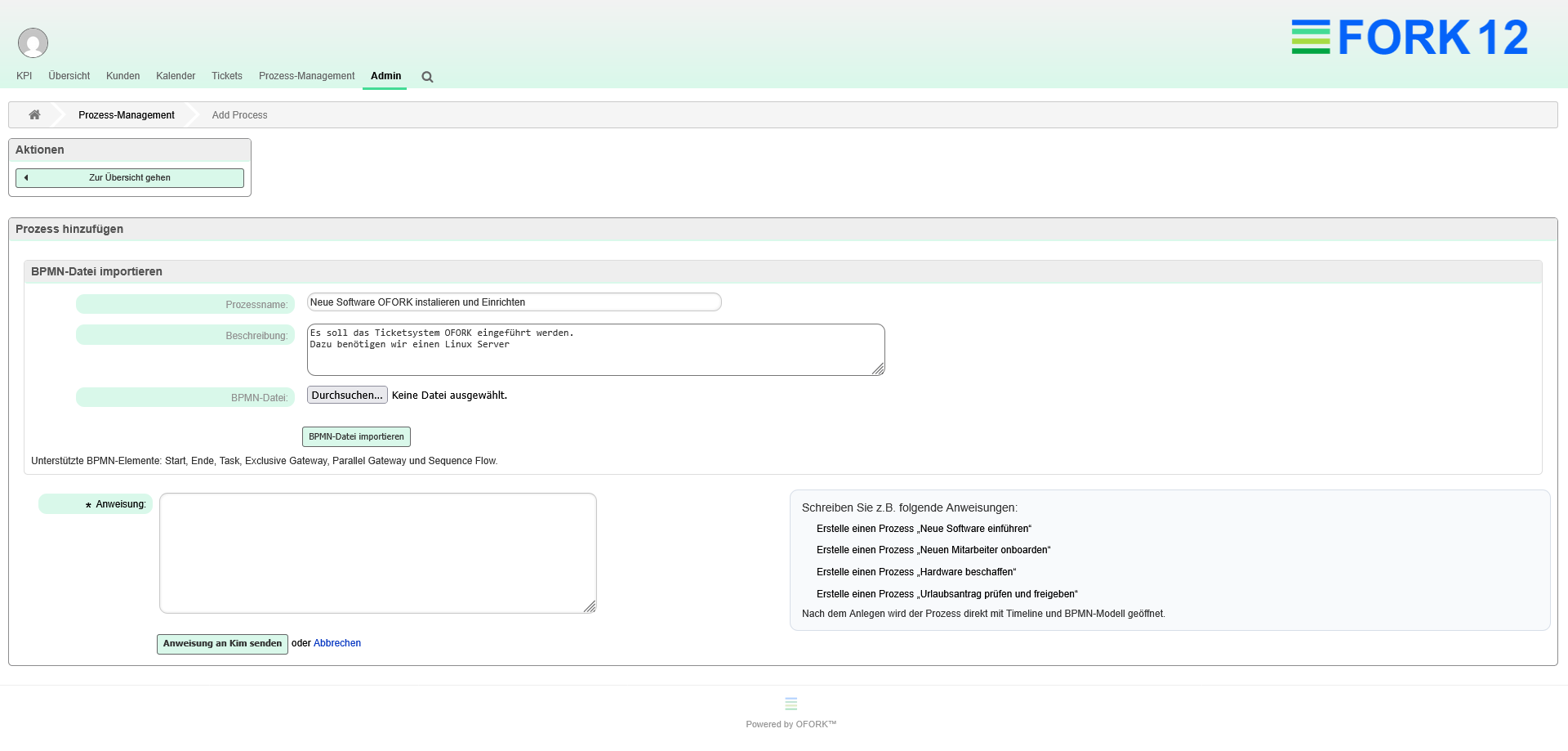
Adopt existing BPMN processes in seconds
Not every process needs to be modeled from scratch. If BPMN files already exist, they can be imported directly into OFORK. The workflow is displayed in the admin area and can be adjusted and reused immediately.
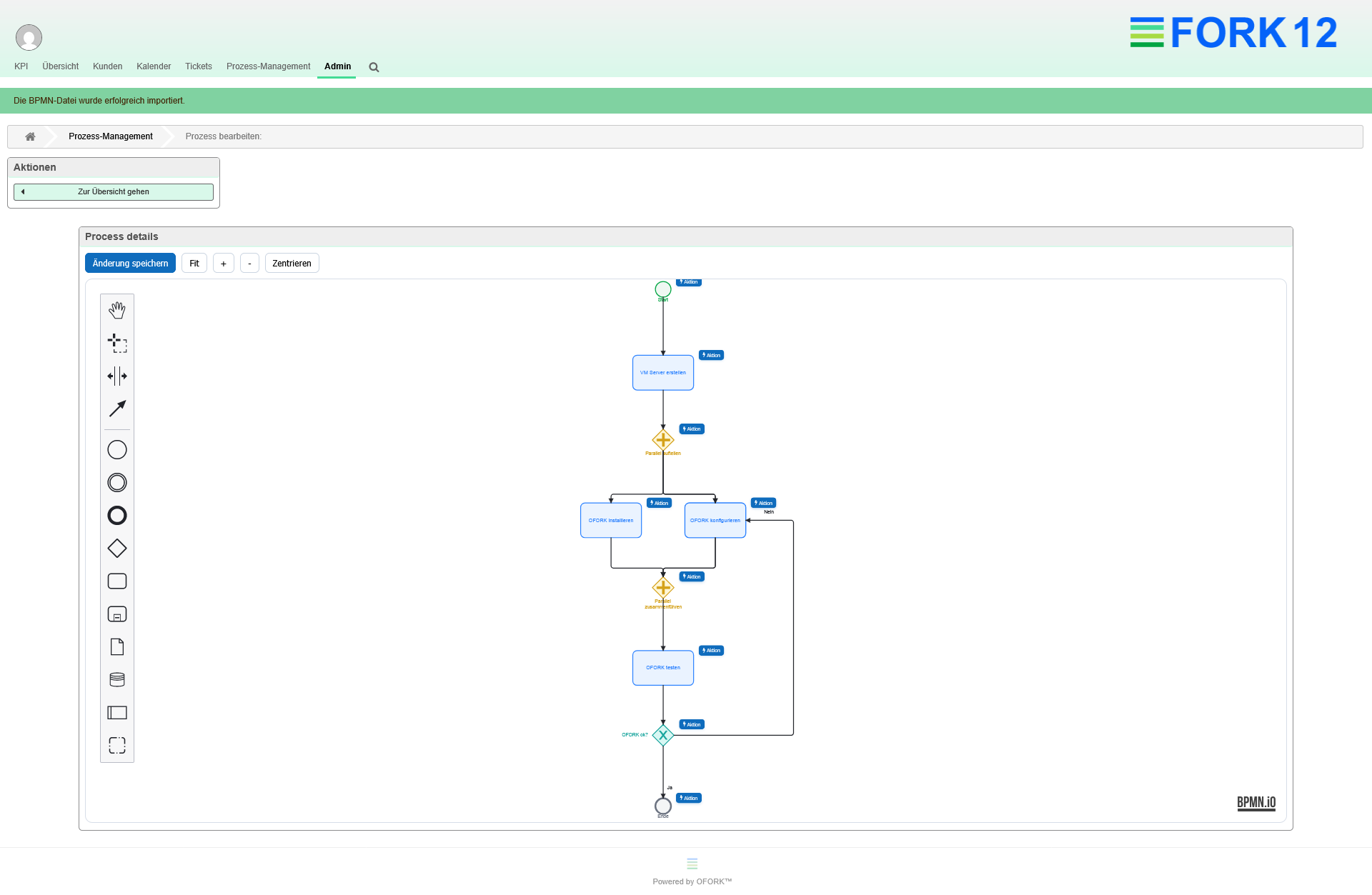
Fast Start
Existing BPMN files do not need to be rebuilt and are ready to use in a very short time.
Direct Editing
The imported process is immediately visible in the admin area and can be adjusted there.
Less Implementation Effort
Existing process work can be reused instead of being modeled again or transferred manually.
From Diagram to Execution
A model becomes an actively controllable process that can be used operationally directly inside the ticket.
Why traditional processes slow down daily work
In many companies, workflows are documented, but not truly automated operationally. Tasks are passed around, approvals are delayed, and the overall picture gets lost.
Too Many Manual Handoffs
Tasks are passed on by email, phone, or word of mouth. The actual process remains difficult to trace.
Approvals Take Too Long
Decisions and approvals delay processes because feedback has to be requested and tracked manually.
System Switching Costs Time
Employees constantly switch between inboxes, the ticket system, and other applications. That costs speed and focus.
Processes Stay Theoretical
A diagram or documentation is of little help if the operational workflow is not actively controlled in daily business.
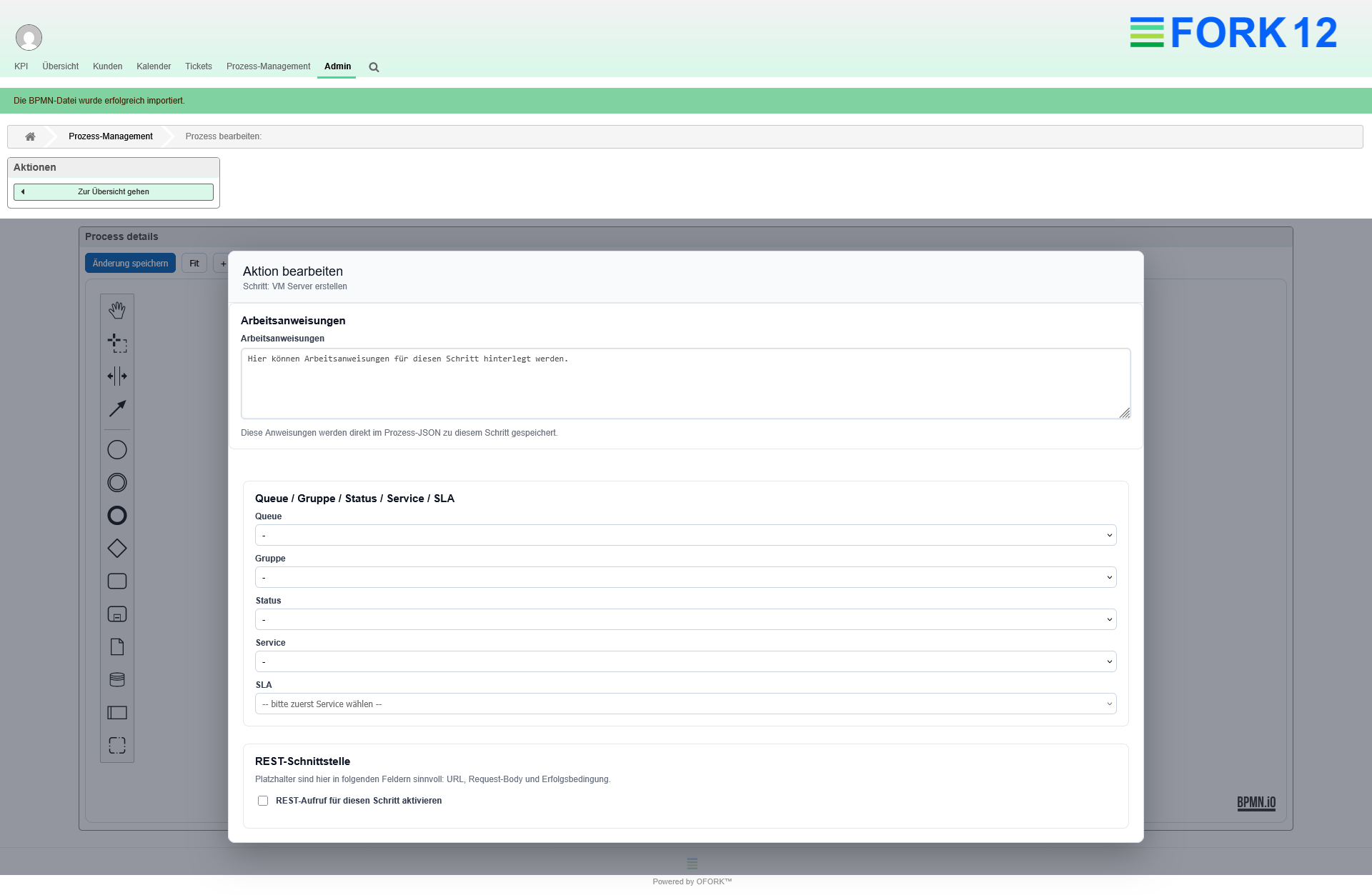
Actions and control for each step
Every process step becomes useful both operationally and technically
For each work step, you can define work instructions, queue, group, status, service, SLA, and dynamic fields. Decisions, approvals, and delegations can be modeled directly inside the workflow.
The result is not a rigid diagram, but a process that is actually manageable in daily operations and fits your organization.
How the OFORK Process Autopilot works
The workflow remains understandable for business departments, support teams, and IT. At the same time, the model becomes real operational execution inside the ticketing system.
Describe the Process
In the admin area, the desired workflow is described in natural language.
Or Upload a BPMN File
An existing process is imported and displayed directly in the OFORK admin area.
Edit the Process
Steps, decisions, approvals, work instructions, and actions can be adjusted.
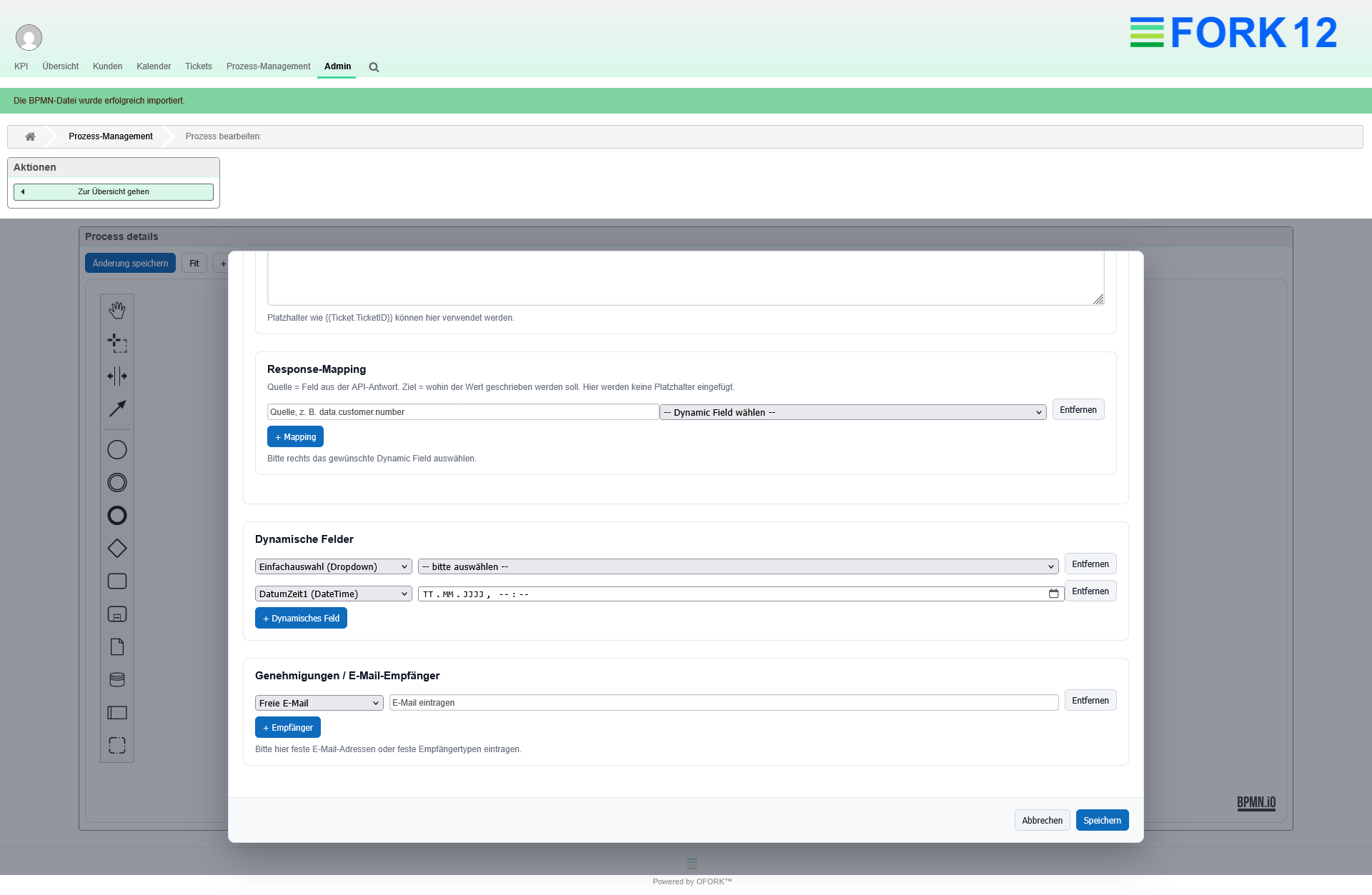
The process remains visible at all times
A large visual helps especially at this stage. Visitors immediately understand that the workflow is not only generated, but also graphically reviewed, adjusted, and prepared for operational use.
Assign the Process to the Ticket
When used in a ticket, OFORK writes its own copy of the template into a separate table. This keeps running processes stable.
Delegate Tasks by Email
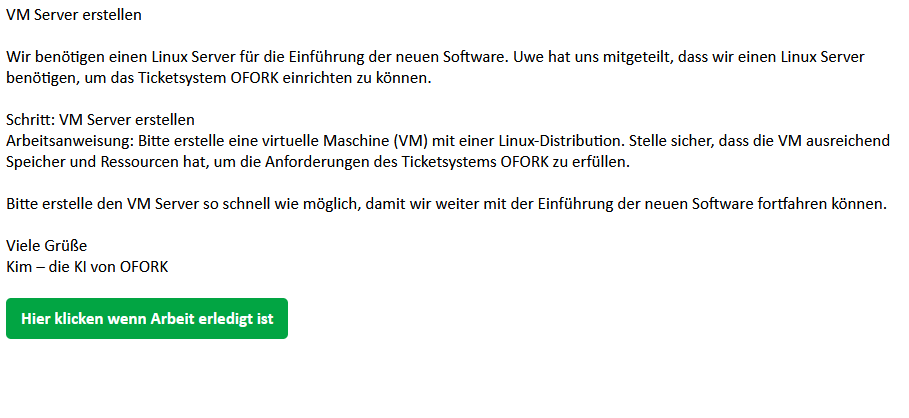
The AI automatically sends emails to responsible agents or groups and describes the task clearly and transparently.
Automatically Trigger the Next Step
After feedback or completion, the step is closed, documented, and the next task is triggered.
REST interfaces and dynamic fields
Processes remain connected to other applications
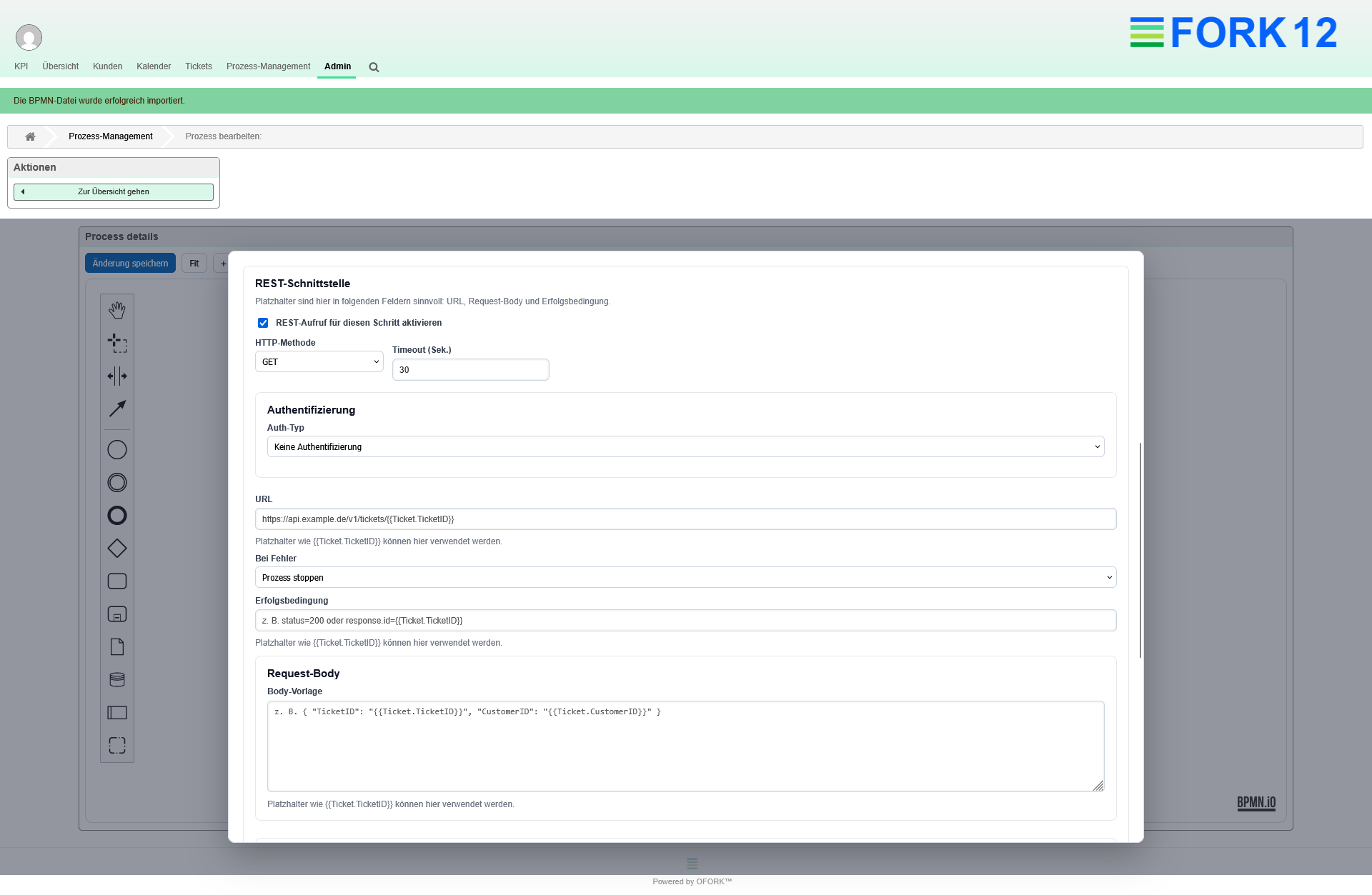
Through a REST interface per step, data can be sent to other systems, responses can be processed, and values can be written back directly into dynamic fields.
This means OFORK does not become an isolated solution, but an active control center for processes that connect multiple applications.
A closer look at the OFORK Process Autopilot
These four areas should be backed by real screenshots. This allows visitors to immediately see that the solution has already been implemented in practice.
Built for teams that want more than just ticket management
The OFORK Process Autopilot combines operational control, automation, and data control. That makes it suitable both for technical teams and for decision-makers who want to improve processes sustainably.
IT Departments
For internal service processes, approvals, standardized workflows, and integration-capable process control.
Support Teams
For recurring work, clear responsibilities, and processes that should run faster and be easier to trace.
Companies with complex workflows
For organizations that want to automate processes without giving up data control, on-premise capability, or flexibility.
Live demonstration instead of just explanation
The OFORK Process Autopilot is most convincing in real use
The capabilities of the OFORK Process Autopilot are easiest to understand in a live demonstration. We show with real workflows how processes are created, imported, edited, and executed by email.
Request a live demo of the OFORK Process Autopilot
In around 15–30 minutes, see how OFORK creates processes with AI, imports BPMN files, and automatically continues tasks by email.
What you will see in the demo
- Automatically create processes from descriptions
- Import existing BPMN files directly
- Control steps with actions, groups, and SLA
- Delegate and continue tasks by email
- See REST integration and dynamic fields in action
Frequently asked questions about the OFORK Process Autopilot
Answers to common questions about Agentic AI, BPMN import, operational execution, and the use of processes inside tickets.
What is the OFORK Process Autopilot?
The OFORK Process Autopilot is a new feature based on Agentic AI. Processes are created from descriptions or imported via BPMN files, edited in the admin area, and executed directly inside tickets.
Do employees need to work constantly inside the ticketing system?
No. Tasks are delegated by email to responsible people or groups. Work can continue directly from that operational flow.
Can processes be edited later?
Yes. The generated or imported workflow is displayed as BPMN in the admin area and can be adjusted there.
What happens if the template is changed later?
When used in a ticket, a copy of the template is stored in its own table. This keeps running processes stable and independent of later changes made in the admin area.
Can other systems be connected?
Yes. A REST interface can be used per step to send data to other applications, process responses, and write values into dynamic fields.
Are emails documented in the ticket?
Yes. Every outgoing email from the AI and every incoming reply during execution is stored as an article in the ticket.