



OFORK Microsoft 365 Integration
The new Microsoft 365 integration connects OFORK directly with calendars, Teams, channels, chats, and documents. Support teams can work without switching systems: schedule appointments, start Teams meetings, find SharePoint documents, attach files, and automatically prepare responses with Kim-KI – directly from the ticket system.
The extension is designed for real support workflows: agents stay in OFORK while accessing Microsoft 365 content in a controlled way. Calendar information, Teams communication, and document knowledge become available exactly where they are needed – in the ticket, in the response, and in daily ticket processing.
Use Microsoft 365 directly in the OFORK ticket system
The integration brings key Microsoft 365 features into the OFORK interface. Agents do not need to switch between multiple applications, but can use appointments, communication, files, and response suggestions directly in the ticket context.
Microsoft 365 Calendar
View calendars, select users, use month, week, and day views, and display additional calendar information such as holidays or birthdays.
Teams Meetings
Prepare meetings from within OFORK, invite participants, and generate Teams links for support appointments, coordination, or escalations.
Teams Chat
Open chats, start new conversations, and send messages from within OFORK – compactly accessible through the Teams window in the system.
Teams & Channels
Select teams and channels, view channel histories, and send messages to the right communication spaces without leaving OFORK.
Microsoft 365 Documents
Search SharePoint sites, document libraries, and folders, upload files, and create new Word, Excel, or PowerPoint documents.
Automatic Responses
Kim-KI can use ticket content, existing knowledge, and found documents to prepare response texts and help agents reach the right solution faster.
Microsoft 365 Calendar in OFORK
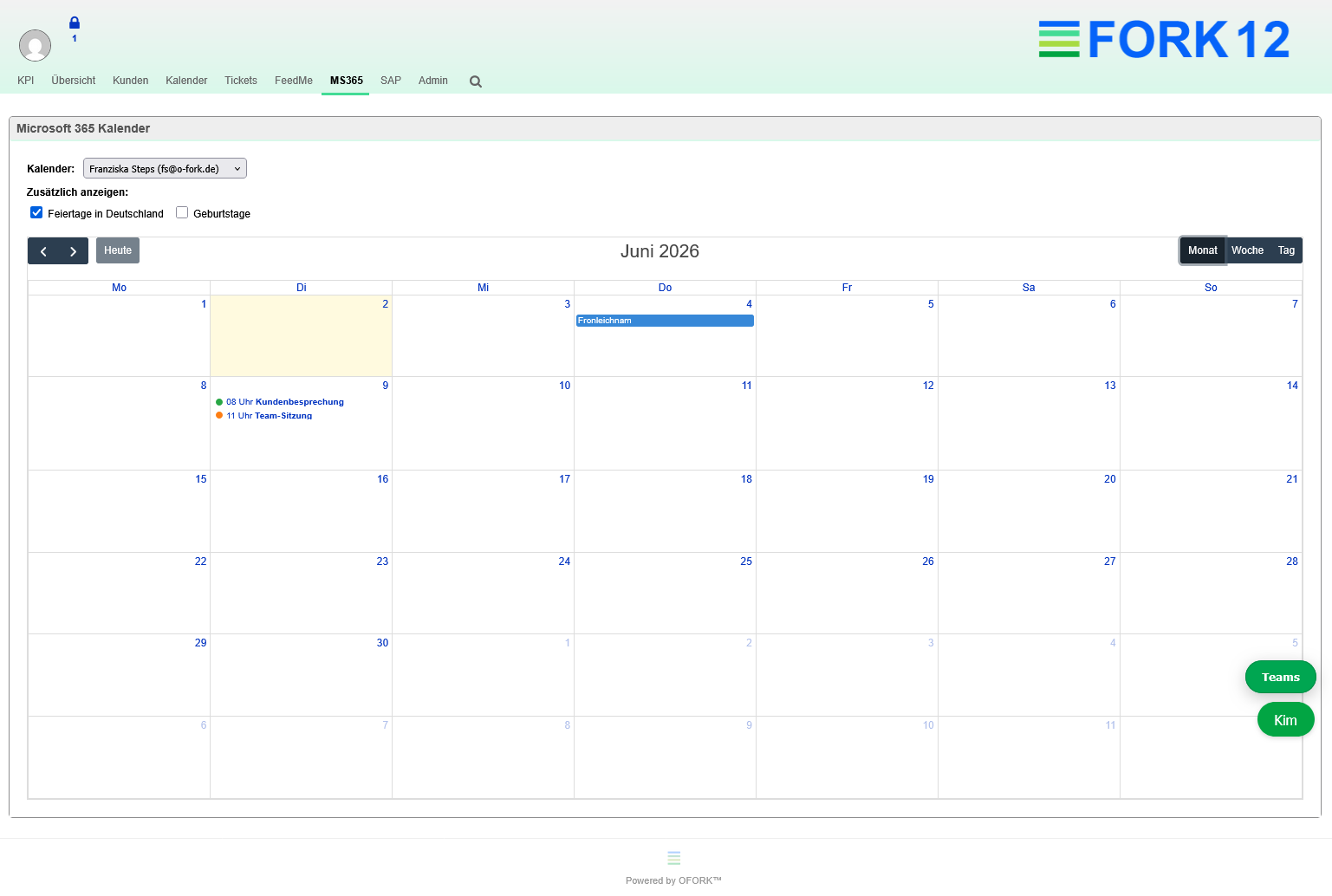
The calendar area displays Microsoft 365 calendars directly in OFORK. Agents can switch between authorized calendars, use month, week, and day views, and display additional information such as holidays or birthdays.
- Calendar selection for Microsoft 365 users
- Month, week, and day view
- Optional additional calendars such as holidays and birthdays
- Clean integration into the existing OFORK interface
Teams meetings directly from OFORK
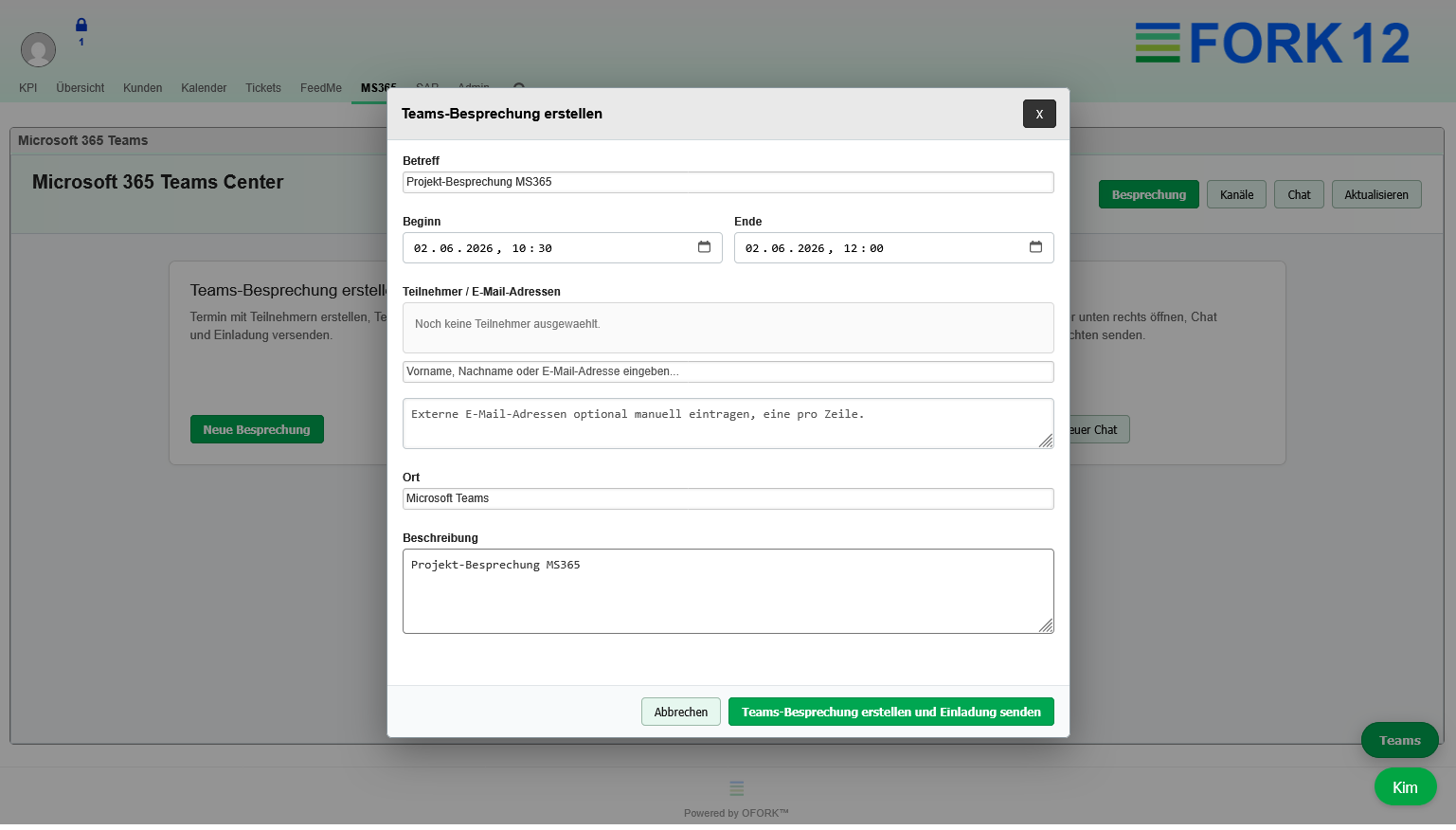
The Teams Center lets you prepare meetings for customers, agents, or internal groups. OFORK creates the appropriate Teams context so coordination does not have to be organized outside the ticket system.
- Create new Teams meetings from OFORK
- Add participants and prepare invitations
- Use Teams links for support appointments and escalations
- Document meetings as part of the support process
Channels and chat for fast coordination
Support work needs short communication paths. With the Microsoft 365 extension, agents can use Teams channels and chats directly from OFORK without losing the connection to the ticket.
Teams & Channels
Teams and channels can be selected, channel histories can be displayed, and messages can be sent directly to the appropriate channel. This keeps follow-up questions, coordination, and internal notes where the team already works.
- Select teams
- Open channels
- Display channel history
- Send messages to channels
Teams Chat
The chat window can be opened compactly from OFORK. Agents select existing chats or start new conversations to quickly clarify follow-up questions and then continue working in the ticket.
- Open the chat window directly in OFORK
- Select existing chats
- Start new chats
- Send messages without leaving the ticket system
SharePoint and Microsoft 365 documents in OFORK
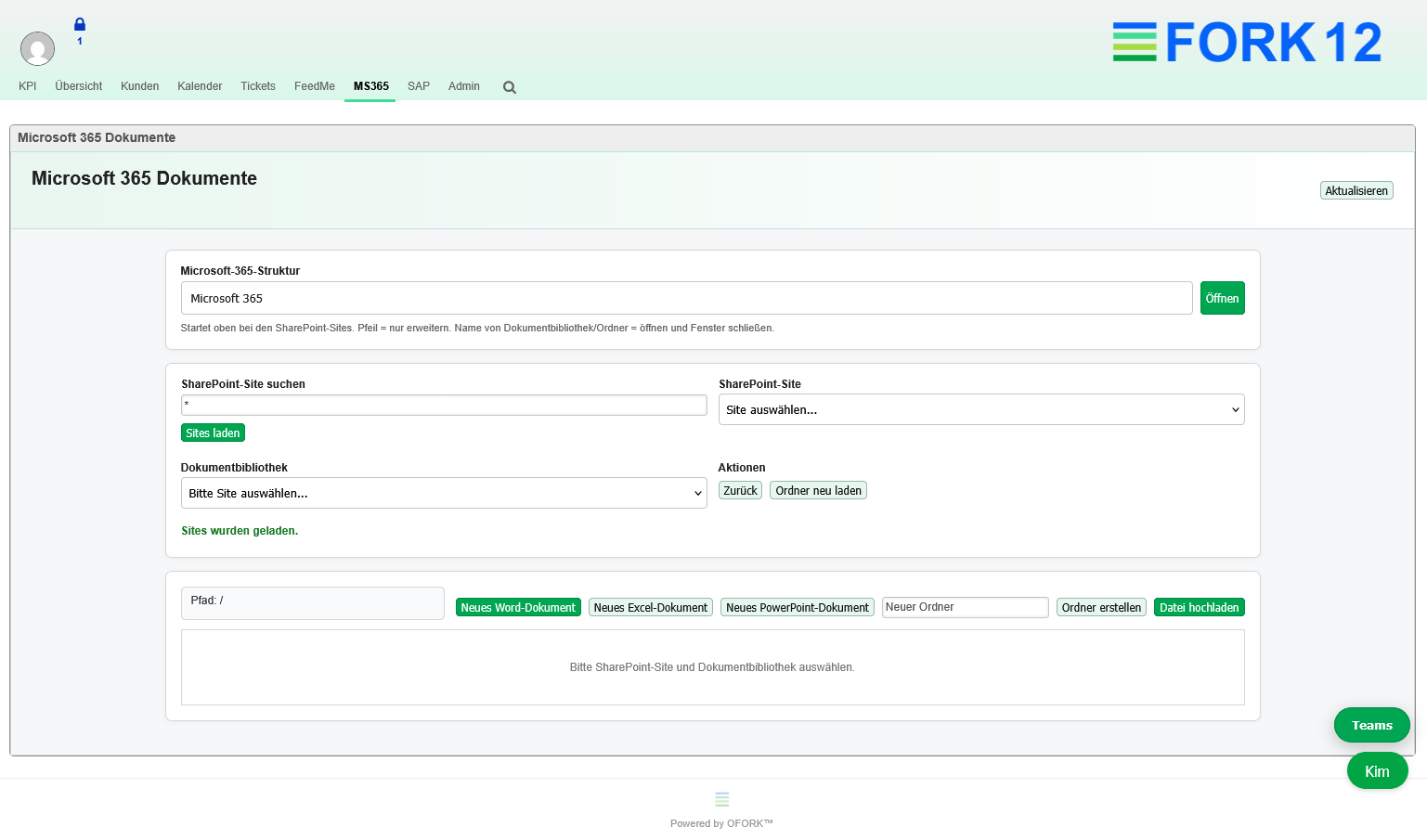
The document area connects OFORK with Microsoft 365 document structures. Agents can load SharePoint sites, select document libraries, open folders, and manage files.
- Search and load SharePoint sites
- Select document libraries
- Display folders and files directly in OFORK
- Create new Word, Excel, and PowerPoint documents
- Create folders and upload files
Search documents while replying and attach them directly
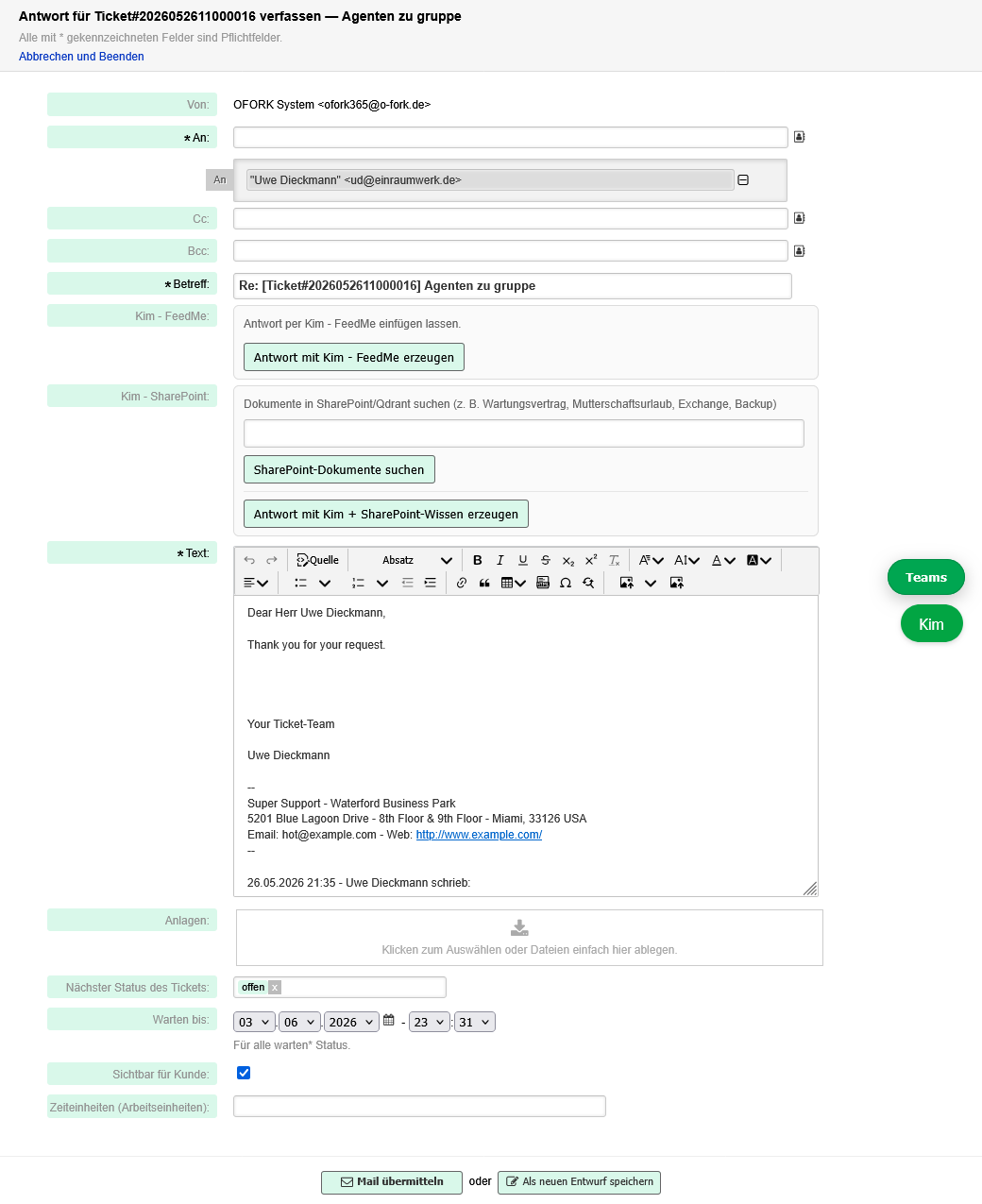
When composing a ticket response, OFORK can search Microsoft 365 and SharePoint documents in a targeted way. Relevant files can be added directly from the response form and attached to the reply.
- Document search directly in the response form
- Search for contracts, instructions, technical documentation, or customer documents
- Add found files directly
- Attach files without manual downloading and re-uploading
- Fewer system switches and fewer errors during ticket processing
Automatic response generation with Kim
Kim supports agents when writing ticket responses. Ticket content, stored OFORK knowledge, and found Microsoft 365 documents can be combined for this process.
From ticket to prepared response
Kim identifies the request, context, and relevant question in the ticket.
Existing responses, Qdrant knowledge, and SharePoint documents can be included in the response preparation.
Kim creates a reviewable response suggestion directly in the response form.
The agent remains responsible, can adjust the suggestion, and then send the response.
Typical benefits in everyday support work
The Microsoft 365 integration is not intended as a separate side system, but as a productive extension of daily ticket processing.
Fewer switches
Calendar, Teams, chat, and documents remain available within the OFORK work context.
Find faster
Relevant Microsoft 365 documents can be searched directly while processing tickets.
Attach directly
Found documents can be added to the response as attachments without extra steps.
Kim supports
Response suggestions are created based on ticket content, knowledge, and suitable documents.
Which scenarios is the MS365 integration suitable for?
The extension is especially helpful wherever support, internal communication, and document knowledge need to work closely together.
IT support and help desk
Search technical documents, schedule appointments, coordinate escalations, and prepare responses directly in the ticket.
Internal service teams
Clarify follow-up questions with departments via Teams and use relevant Microsoft 365 files directly in OFORK.
Customer service
Find customer documents faster, improve response quality, and add attachments from the document repository in a controlled way.
Request a live demo of the Microsoft 365 integration
See in a short demo how OFORK connects calendars, Teams, channels, chat, documents, and Kim-KI in one continuous support workflow.
What you will see in the demo
- Microsoft 365 Calendar in OFORK
- Teams meetings, channels, and chat
- Search and manage SharePoint documents
- Attach documents directly while replying
- Kim-KI response generation with document knowledge
Experience Microsoft 365 in the OFORK ticket process
The new extension shows its strength when everything works together: calendars, Teams, documents, and Kim-KI work directly in the ticket context.
Request a Demo Contact Support Open Kim-KIFrequently asked questions about the OFORK Microsoft 365 integration
Answers to common questions about the new extension.
Is the Microsoft 365 integration part of the regular OFORK core?
No. The integration is designed as an add-on extension for OFORK and Kim-KI and enhances existing ticket processing with Microsoft 365 features.
Which Microsoft 365 areas are supported?
This project page describes calendars, Teams meetings, Teams channels, Teams chat, documents, document search while replying, and automatic response generation with Kim.
Can documents be attached directly to ticket responses?
Yes. The goal of the extension is to search for relevant documents directly in the response form and add them as attachments to the ticket response.
Does Kim replace the agent?
No. Kim creates reviewable suggestions and supports research and wording. Final review and approval remain with the agent.